How to assign a custom role to a user
Custom roles are assigned to users exactly like the built-in roles. You can assign a custom role when you invite someone new, or change an existing user’s role at any time.
Good to know
- You'll need to have created a custom role first. To learn how, refer to the How to create a custom role help article.
- You need permission to manage users. The Owner and any Station manager can do this by default.
- A user’s access updates within a few minutes of the change.
Assigning a custom role to a new user
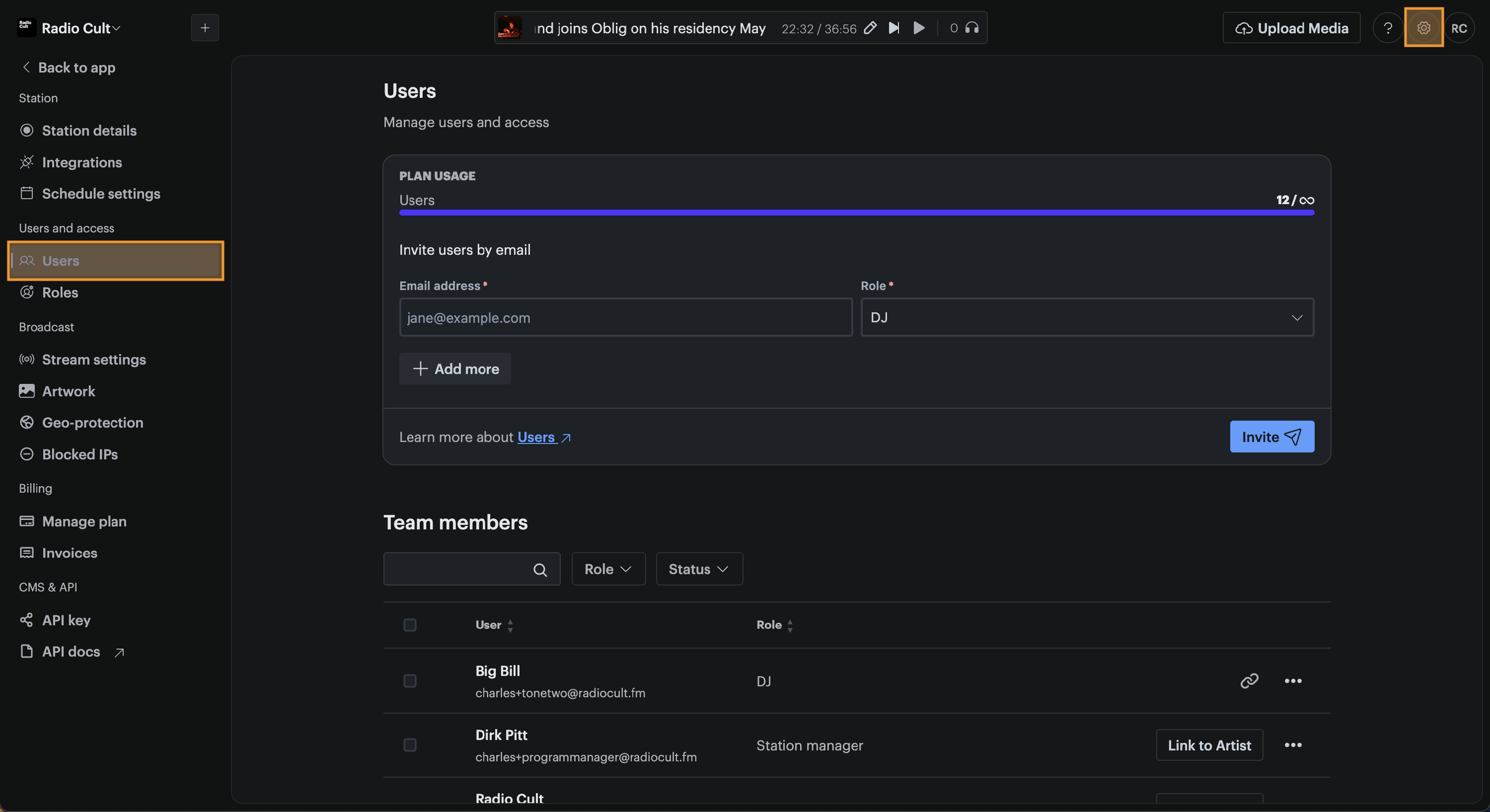
- Click the Settings (cog) icon in the top right hand corner of the navigation bar, then click Users under the Users and access menu.
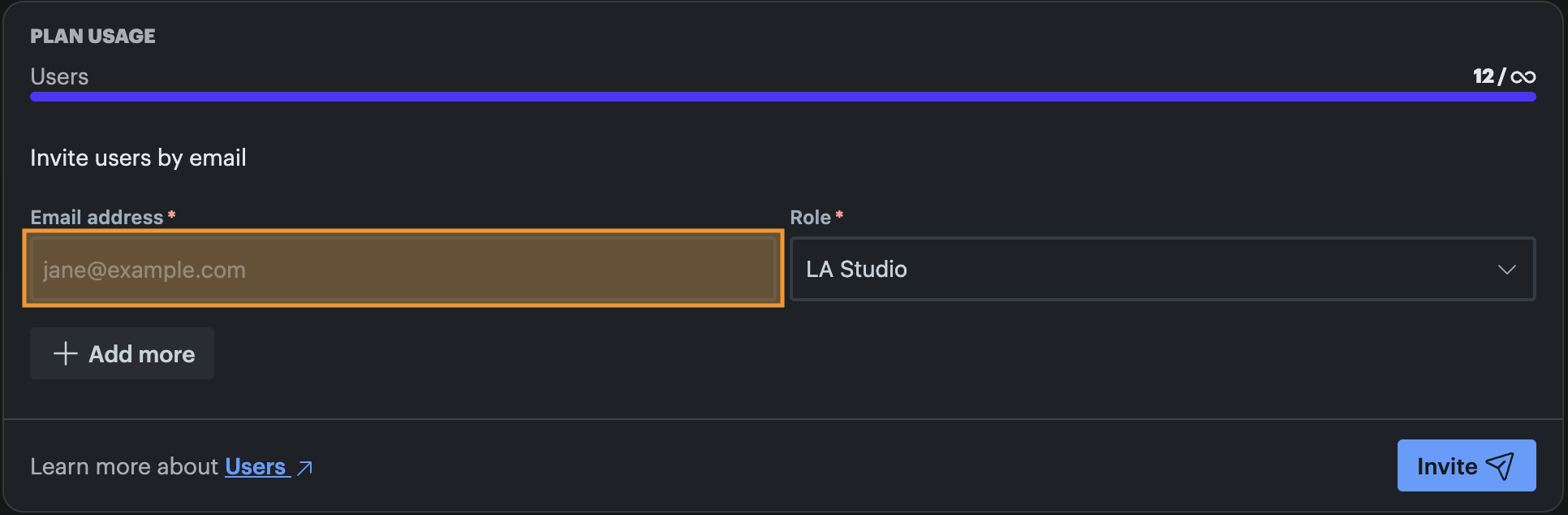
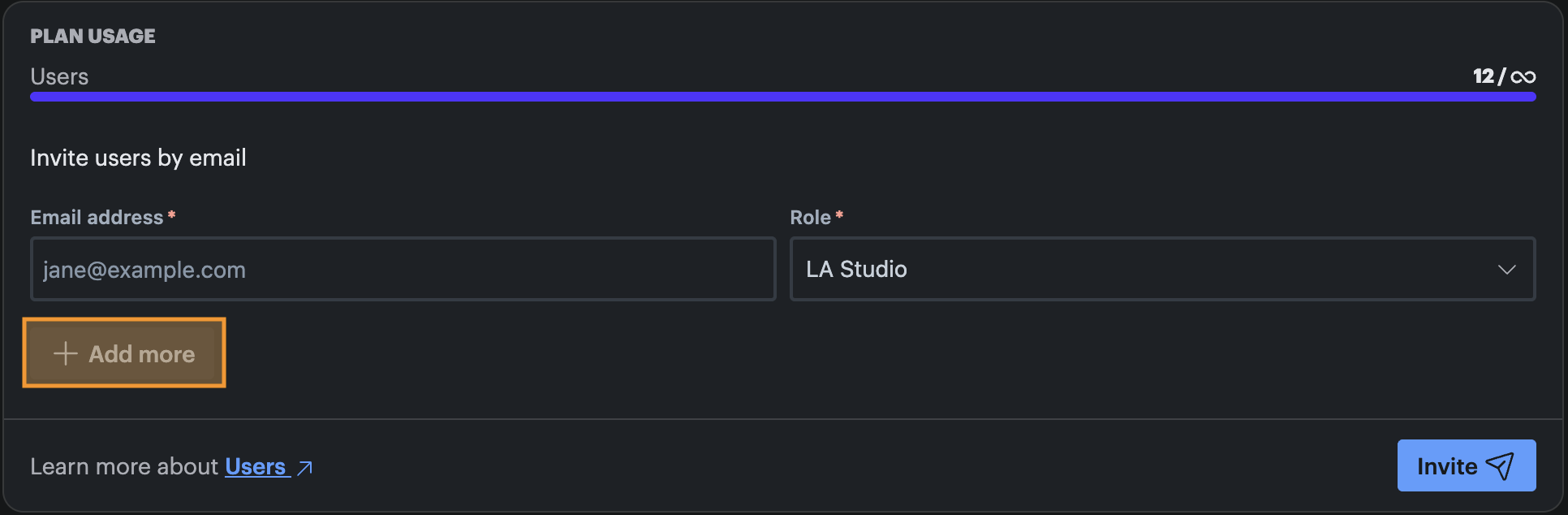
- Enter the new user’s Email address.
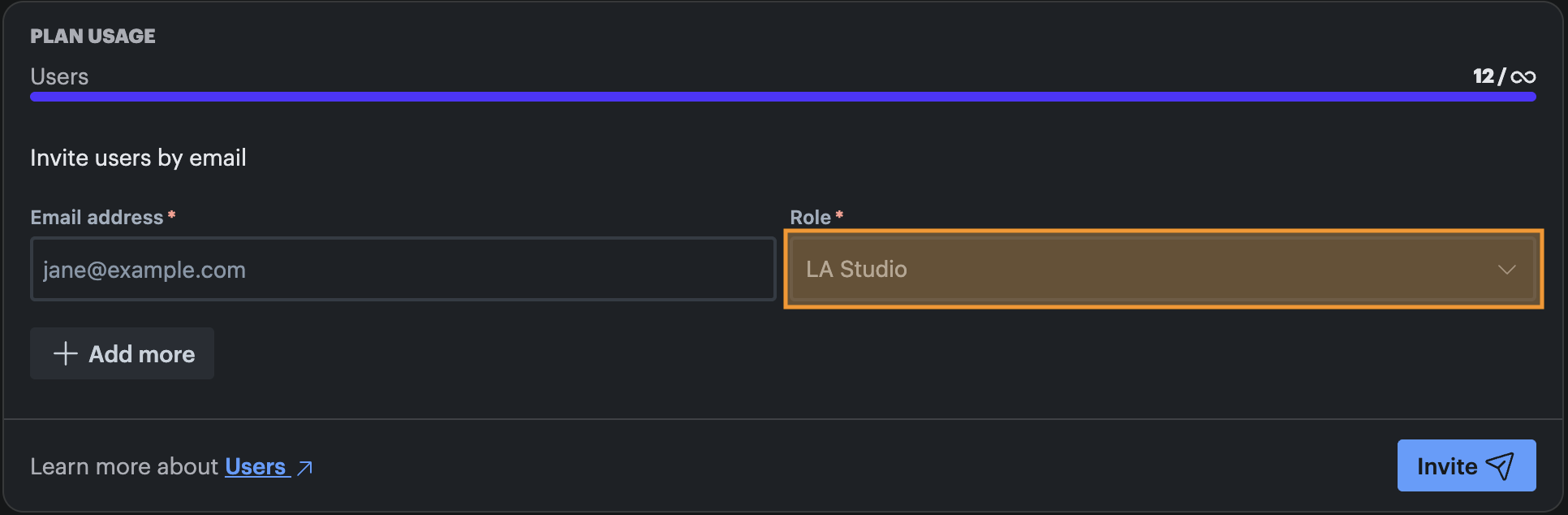
- Click the Role dropdown and select your custom role.
- Optional: Click the Add more button to invite several users at once, then repeat steps 2 and 3 for each.
- Click the Invite button.
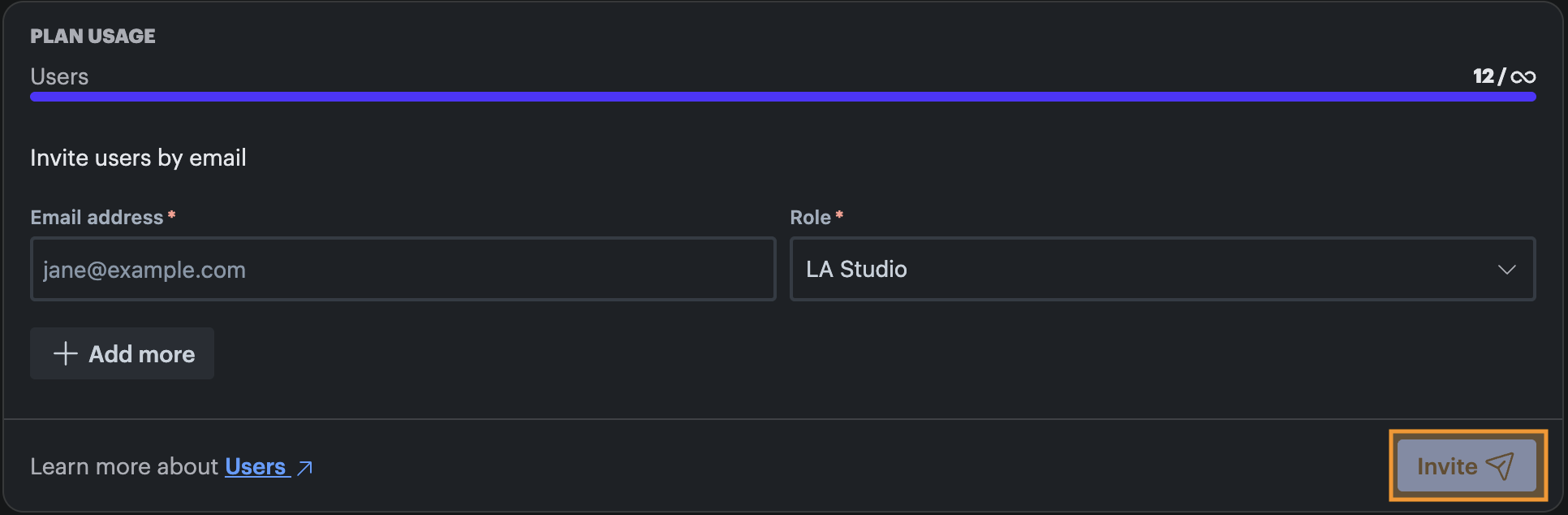
The user will receive an email inviting them to your station. Once they accept, they'll have exactly the access defined by the custom role.
Assigning a custom role to an existing user
- Click the Settings (cog) icon in the top right hand corner of the navigation bar, then click Users under the Users and access menu.
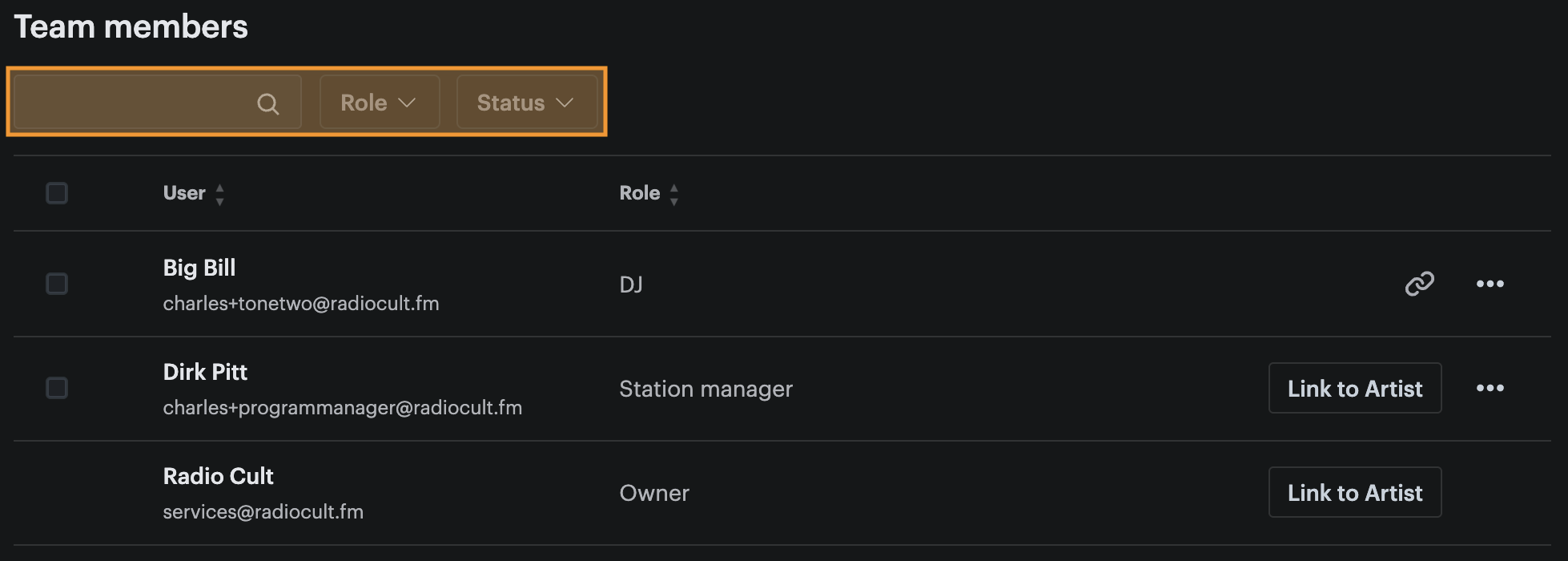
- Find the user you want to update (you can use the Search bar, Role filter and Status filter to help).
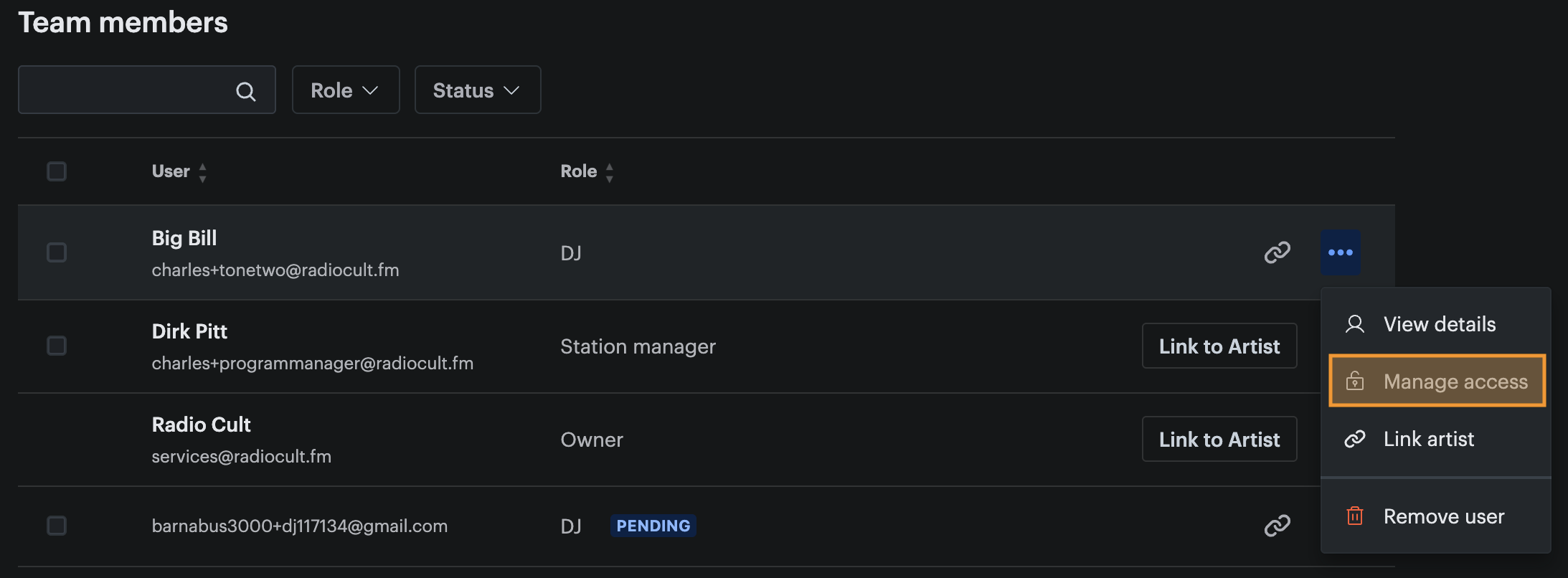
- Click the Actions (...) button next to that user, then click the Manage access button.
- Select your custom role.
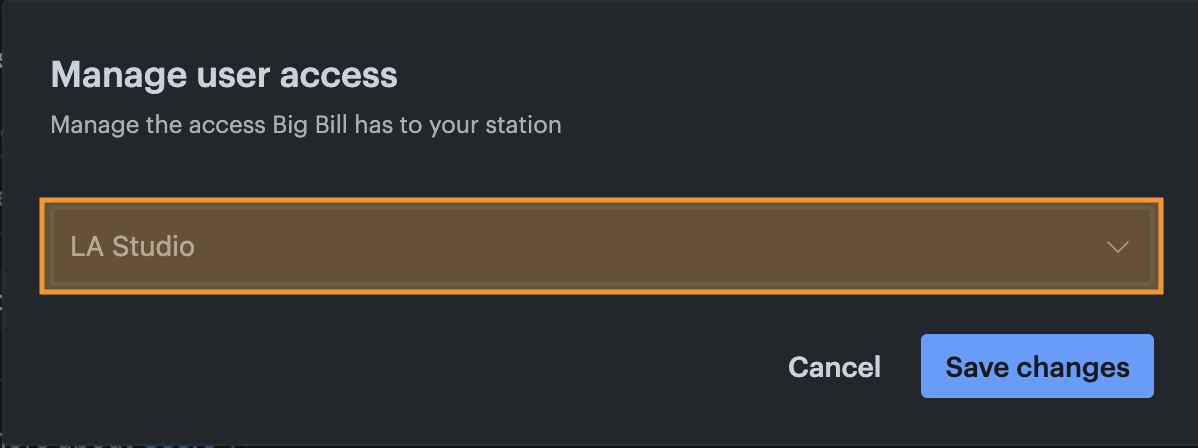
- Click the Save changes button.
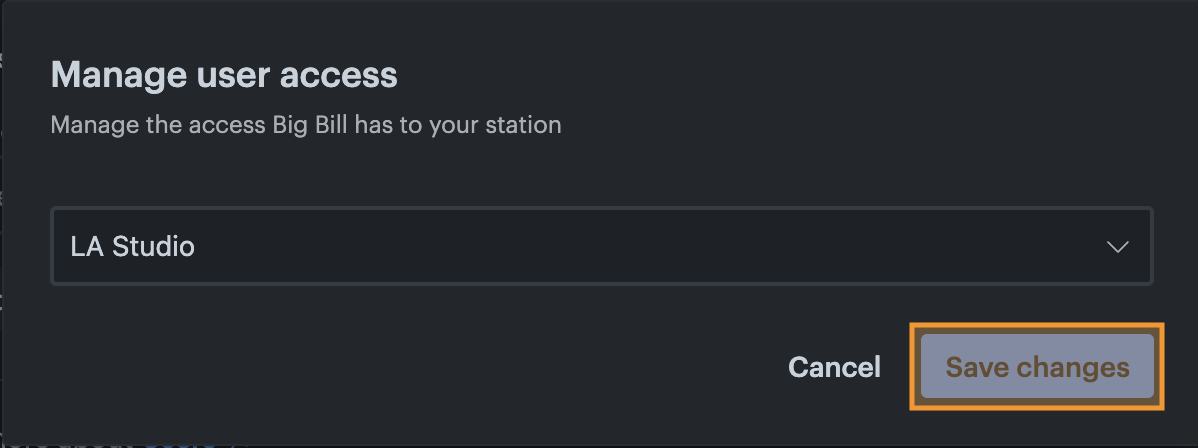
The user’s access will now be updated to your custom role.
Tip:
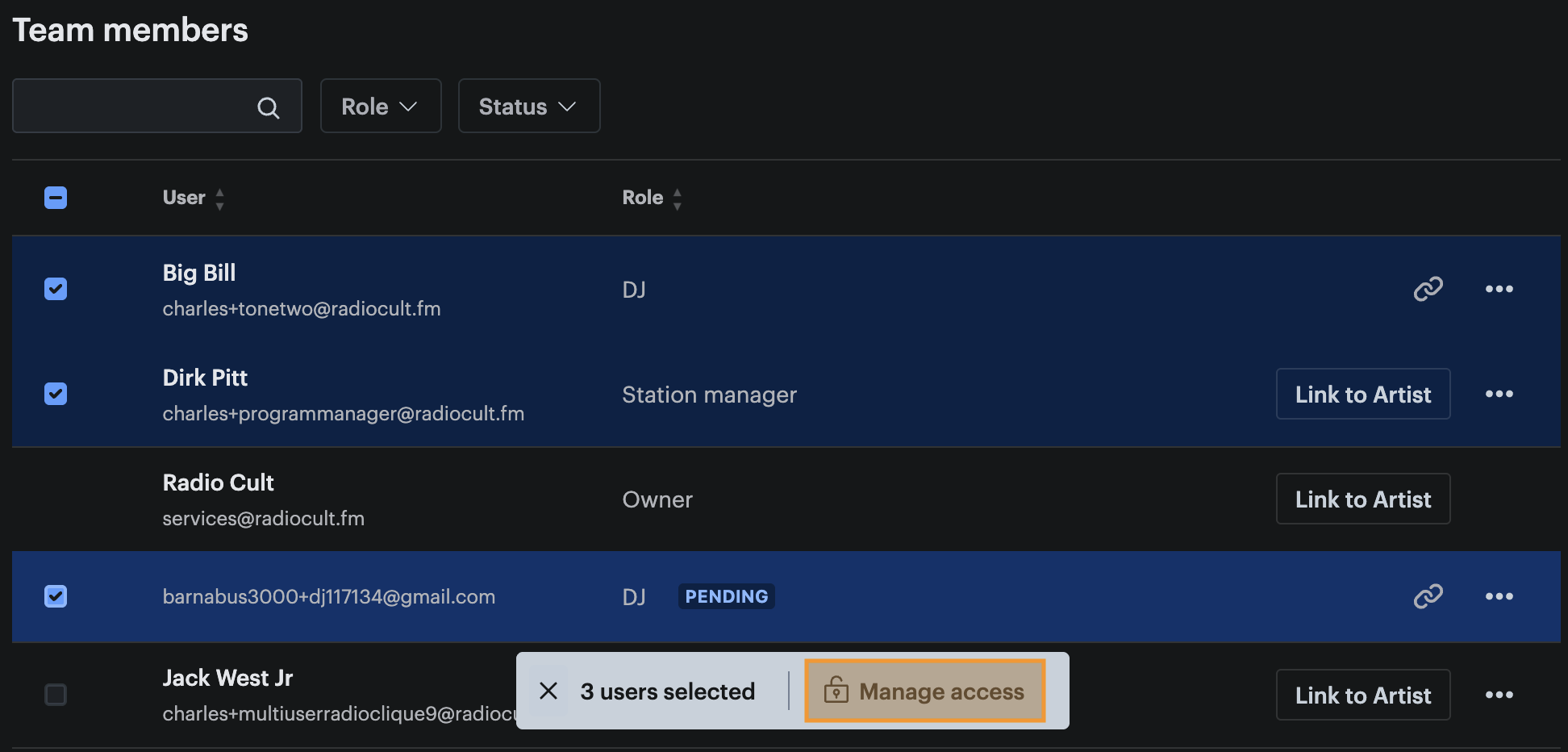
To give the same role to several users at once, use the bulk action on the Users page. Select the users you want by clicking the checkbox at the left of each row, click the Manage access button in the bulk actions menu bar, select the role, then click the Save changes button. The selected users will all be updated to that role.